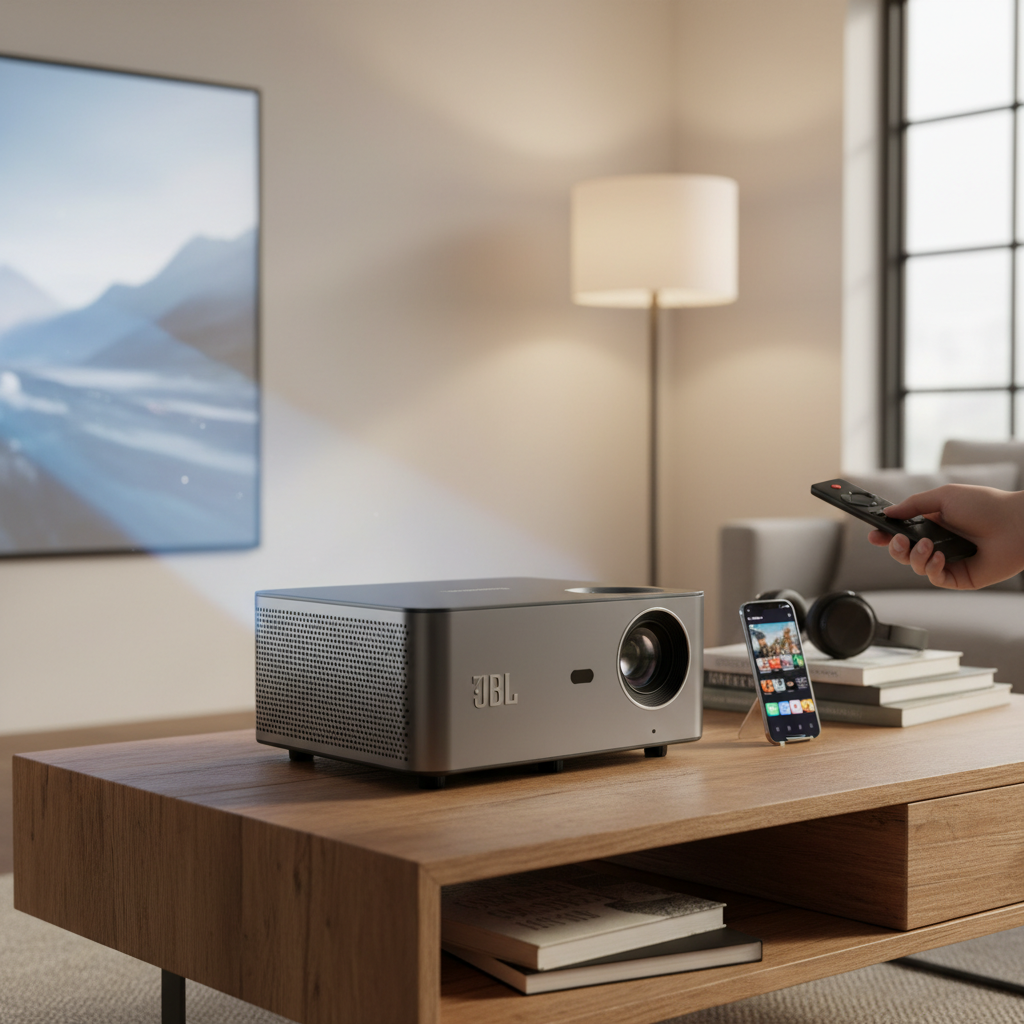
In a world where our smartphones hold our lives—from presentations and work documents to cherished photos and favorite movies—the small screen can often feel limiting. Imagine transforming that tiny display into a colossal, immersive experience. Connecting your Android phone to a projector opens up a world of possibilities, perfect for impressing clients with a flawless presentation, sharing vacation memories with loved ones, or enjoying a cinematic movie night right at home. This comprehensive guide will walk you through every step of mirroring your Android device to a projector, covering both wired and wireless methods, common apps, and practical troubleshooting tips to ensure a seamless setup.
Why Mirror Your Android Phone to a Projector?
Mirroring your Android phone to a projector isn’t just a tech trick; it’s a versatile solution for various scenarios. For professionals, it means delivering impactful presentations from a device that’s always with them, ensuring flexibility and readiness in any meeting room. Educators can engage students with dynamic lessons displayed on a large screen, making content more accessible and interactive. Beyond work and school, a projector transforms your home entertainment, turning any wall into a giant screen for movies, TV shows, and even mobile gaming. Sharing photos and videos with friends and family becomes a communal experience, far more enjoyable than huddling around a small phone. The portability of many mini projectors, combined with your smartphone’s capabilities, creates a powerful, on-the-go media hub.
Before You Begin: Essential Checks
Before diving into the connection process, a few crucial checks will ensure a smooth experience.
Compatibility is Key
Not all phones and projectors are created equal.
- Phone Compatibility: Newer Android phones typically support video output via their USB-C port (DisplayPort Alternate Mode), while older models might require Mobile High-Definition Link (MHL) or Slimport technology via a Micro-USB port.
- Projector Compatibility: Your projector needs compatible input ports (HDMI, VGA, or USB-C for video input) or wireless capabilities (Miracast, Chromecast, Wi-Fi Direct) to receive content from your phone. Always consult your projector’s manual for supported connection types.
|
Our Picks for the Best Mini projector in 2026
As an Amazon Associate I earn from qualifying purchases.
|
||
| Num | Product | Action |
|---|---|---|
| 1 | HAPPRUN Native 1080P Bluetooth Mini Projector, Full HD Portable Outdoor Movie Projector with Built-in Speaker, Compatible with Smartphone, HDMI, USB, AV, Fire Stick, PS5 for Home, Bedroom, Outdoor Use |

|
| 2 | HP Smart Mini Projector with WiFi and Bluetooth, Short Throw Projector, Native 1080P Full HD, Official Licensed Apps, Auto Focus & Keystone, Portable Movie Projector for Bedroom & Outdoor |
|
| 3 | Optoma 4K UHD Projector HDR High Brightness Home Theater DLP Technology White Compact Design Gaming Ready Streaming Bundle HDMI Cable CPS 12 Month Protection Plan Included |
|
| 4 | 【Built-in APPS & Electric Focusing & 210° Rotation】Mini Projector With Wifi And Bluetooth, 1080P Portable Projector, Movie Projector for Bedroom, Supports Smartphones/TV Stick/iPad/PS5/Laptop/HDMI/USB |
|
| 5 | Mini Projector, ELEPHAS Portable Projector for iPhone, 7000L with Synchronize Smartphone Screen, Movie Projector with 1080P HD/200 Screen Support, Compatible with Android/iOS/TV Stick/HDMI/USB/SD |
|
| 6 | Magcubic Mini Projector with WiFi 6 and Bluetooth 5.4, Portable Projector 4K Support, 5W Soundbase Speaker, Auto Vertical Keystone 180°Rotatable Smart Proyector for Movie Home Outdoor |
|
| 7 | Mini Projector with WiFi 6 and Bluetooth 5.4 Built-in Apps for Bedroom Portable Projector Android 14 Smart Auto Keystone 1080P 4K Support Compatible with iOS/HDMI/TV Stick VisualCube 300 White |
|
| 8 | [Built-in Apps] CLOKOWE Mini Projector with WiFi and Bluetooth, 2026 Upgraded 1080P Smart Portable Projector with 180° Rotation, Auto Keystone, Compatible with iPhone/Android/Laptop/TV Stick/HDMI/USB |
|
| 9 | CiBest Mini Projector, Upgraded Full HD 1080P Support Video Projector, Portable Small Movie Projector, Compatible with iOS/Android/Windows/TV Stick/Box/USB/HDMI |
|
| 10 | Mini Projector with Wifi 6 and Bluetooth5.4, Portable Projector 4K Support, Android 14 Smart Proyector with 200ASIN & Auto Keystone, Alwtniet HY300Pro Small Proyector for Bedroom, Movie, Outdoor |
|
Required Cables and Adapters
Depending on your devices, you might need specific accessories:
- For USB-C phones: A USB-C to HDMI adapter or cable. If your projector also has a compatible USB-C port, a direct USB-C to USB-C cable might suffice.
- For Micro-USB phones (older models): An MHL to HDMI adapter or a Slimport to VGA adapter.
- For Wireless Connections: While some methods are built-in, a Chromecast dongle might be necessary if your projector lacks native casting features.
Network Requirements
For most wireless mirroring methods, both your Android phone and the projector (or connected streaming device) must be connected to the same Wi-Fi network. A stable and strong Wi-Fi signal is crucial for optimal performance, preventing lag and maintaining high-quality visuals and audio.
Power Supply
Mirroring can drain your phone’s battery quickly. For extended sessions, ensure your phone is fully charged or connected to a power source, as some adapters may not provide passthrough charging.
Wireless Methods to Mirror Android to Projector
Wireless mirroring offers unparalleled convenience, eliminating cable clutter and providing flexibility in placement.
1. Using Built-in Android Features (Miracast, Smart View, Cast)
Many Android devices and smart projectors support a native wireless display standard, often referred to as Miracast, “Cast,” “Smart View” (on Samsung phones), or “Wireless Display.” This method typically creates a direct connection between your phone and projector, or uses your existing Wi-Fi network.
How it Works:
Miracast creates a direct wireless connection, similar to Wi-Fi Direct, allowing your phone’s screen to be mirrored onto a compatible projector. For devices using “Cast” or “Smart View,” it often leverages your home Wi-Fi network to stream content.
Step-by-Step Guide:
- Enable Wireless Mode on Projector: Navigate to your projector’s settings and look for options like “Miracast,” “Wireless Display,” “Screen Mirroring,” or “Screen Share,” and enable it. This makes your projector discoverable.
- Activate Screen Mirroring on Android Phone:
- Swipe down twice from the top of your screen to open the Quick Settings panel.
- Look for an icon labeled “Cast,” “Smart View,” “Screen Share,” or “Wireless Display.” Tap it.
- (If not in Quick Settings, go to
Settings > Connected devices > Connection preferences > CastorSettings > Display > Cast.)
- Select Your Projector: Your phone will scan for nearby compatible devices. Once your projector appears in the list, tap on its name to initiate the connection.
- Confirm Connection: After a brief moment, your Android phone’s screen should be mirrored on the projector. You may need to accept a prompt on the projector screen.
“The beauty of wireless screen mirroring lies in its simplicity; with just a few taps, your small phone screen can command a large audience.”
2. Using Chromecast or Google Home
Google Chromecast is a popular and straightforward way to cast content from your Android phone. This method requires a Chromecast dongle plugged into your projector’s HDMI port, or a projector with Chromecast built-in (often found in Android TV or Google TV projectors).
How it Works:
Chromecast acts as a receiver. Your phone, connected to the same Wi-Fi network, tells the Chromecast what content to pull from the internet or streams its screen directly to the device.
Step-by-Step Guide:
- Plug in Chromecast (if external): Connect your Chromecast device to an HDMI port on your projector and power it via USB.
- Set Up Chromecast: If it’s your first time, follow the on-screen instructions to set up Chromecast using the Google Home app on your Android phone. This links it to your Wi-Fi network.
- Connect to Same Wi-Fi: Ensure both your Android phone and the Chromecast/projector are connected to the same Wi-Fi network.
- Cast from an App: Open a Chromecast-enabled app (like YouTube, Netflix, Google Photos). Look for the “Cast” icon (a screen with Wi-Fi waves) and tap it. Select your Chromecast device from the list.
- Mirror Your Entire Screen (via Google Home app): For full screen mirroring (displaying your phone’s home screen, other apps, etc.):
- Open the Google Home app on your Android phone.
- Tap on your Chromecast device.
- Select “Cast my screen” and confirm the action.
- Stop Casting: To end the mirroring, simply tap “Stop mirroring” in the Google Home app or the notification shade on your phone.
3. Third-Party Screen Mirroring Apps
If your projector doesn’t support Miracast or you prefer an alternative, several third-party apps can facilitate screen mirroring. These often provide additional features or broader compatibility across various devices.
Popular App Examples:
- Google Home: (Already covered with Chromecast, but can also be used for general casting to Android TV projectors).
- AirDroid Cast: Allows mirroring across Android, iOS, Windows, macOS, and Smart TVs. Offers local casting for free.
- ApowerMirror: Supports cross-platform mirroring with advanced features like remote control.
- LetsView: A free tool for mirroring to Windows, macOS, Android TV, and other devices.
- Brand-Specific Apps: Projector manufacturers like Epson (
Epson iProjection), Panasonic (Panasonic Wireless Projector), Maxell (Projector Quick Connection), and Sharp NEC (MultiPresenter) often provide their own apps for seamless wireless connection to their projectors. These might not mirror the entire screen but are excellent for documents and presentations.
How to Use Third-Party Apps:
- Download App: Install the chosen app on your Android phone and, if applicable, on your projector or the receiving device (e.g., a laptop connected to the projector).
- Connect to Wi-Fi: Ensure both devices are on the same Wi-Fi network.
- Initiate Connection: Open the app on both devices and follow its specific instructions to establish a connection. This often involves scanning a QR code, entering a PIN, or selecting the device from a list.
- Start Mirroring: Once connected, initiate screen mirroring or content casting through the app.
Wired Methods to Mirror Android to Projector
While wireless methods are convenient, wired connections offer greater stability, lower latency, and consistent quality, especially important for presentations or gaming.
1. USB-C to HDMI/DisplayPort
Modern Android phones largely feature USB-C ports, many of which support video output through DisplayPort Alternate Mode (Alt Mode). This allows a direct wired connection to an HDMI-enabled projector.
Requirements:
- An Android phone with a USB-C port that supports video output.
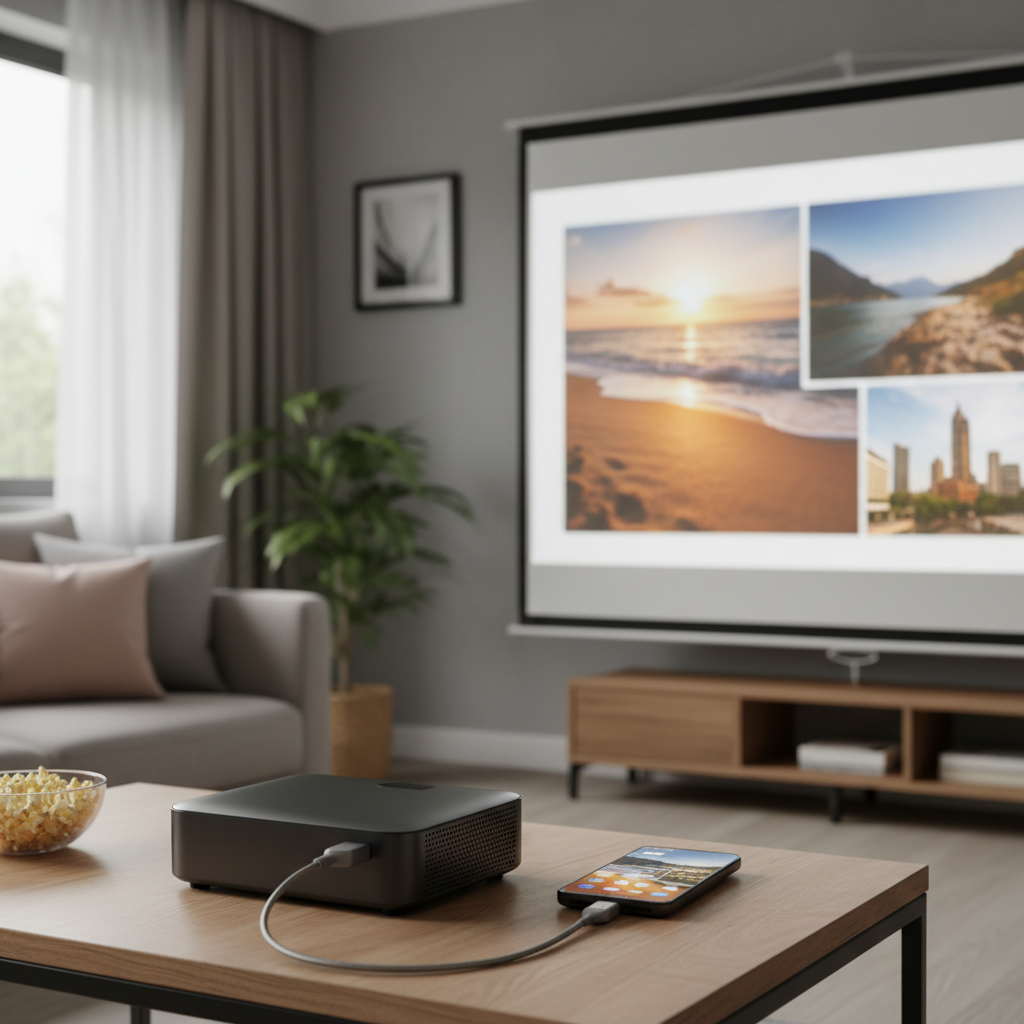
- A USB-C to HDMI adapter or a direct USB-C to HDMI cable.
- A projector with an HDMI input port.
Step-by-Step Guide:
- Connect Adapter/Cable: Plug the USB-C end of the adapter/cable into your Android phone.
- Connect to Projector: Connect the HDMI end of the adapter/cable to an available HDMI input port on your projector.
- Select Input Source: Turn on your projector and use its remote or on-screen menu to select the correct HDMI input source.
- Mirror Screen: Your Android phone’s screen should automatically appear on the projector. If not, you may need to go to your phone’s
Settings > Displayand look for mirroring options.
2. MHL to HDMI (for Older Phones)
Mobile High-Definition Link (MHL) was a common standard for older Android phones with Micro-USB ports to output video and audio to an HDMI display.
Requirements:
- An MHL-compatible Android phone with a Micro-USB port.
- An MHL to HDMI adapter.
- A projector with an HDMI input port (some projectors have MHL-enabled HDMI ports, which can also charge the phone).
Step-by-Step Guide:
- Connect MHL Adapter: Attach the MHL adapter to your phone’s Micro-USB port.
- Connect to Projector: Use a standard HDMI cable to connect the MHL adapter to the HDMI input on your projector.
- Select Input Source: On your projector, select the correct HDMI input source. If your projector has an MHL-specific HDMI port, select that.
- Display Screen: Your phone’s display should now be mirrored on the projector. The MHL adapter may also provide a power input for charging your phone during use.
3. USB-C to USB-C (Direct Connection)
If both your Android phone and your projector feature USB-C ports that support video input/output, a simple USB-C to USB-C cable can be all you need.
Requirements:
- An Android phone with a USB-C port supporting video output.
- A projector with a USB-C input port supporting video input.
- A high-quality USB-C to USB-C cable (ensure it supports data, video, and potentially power delivery).
Step-by-Step Guide:
- Connect Cable: Plug one end of the USB-C to USB-C cable into your Android phone and the other end into the projector’s USB-C video input port.
- Select Input Source: On your projector, select the USB-C input source.
- Mirror Screen: Your phone’s screen should be mirrored.
Troubleshooting Common Mirroring Issues
Even with the right equipment, you might encounter hiccups. Here are solutions for common problems:
No Signal or Blank Screen
- Check Input Source: Ensure the projector’s input source is set to the correct HDMI, USB, or wireless input.
- Verify Cables/Adapters: Double-check all physical connections. Try a different cable or adapter if possible to rule out faulty hardware.
- Compatibility: Confirm that both your phone and projector support the chosen connection method (e.g., USB-C Alt Mode, MHL, Miracast).
Lag or Poor Video/Audio Quality
- Wi-Fi Strength (Wireless): Move closer to your Wi-Fi router or projector to ensure a strong, stable signal. Interference from other devices can also degrade quality.
- Close Background Apps: Too many apps running on your phone can consume resources and impact performance.
- Adjust Resolution: Lowering the mirroring resolution in your phone’s display settings might improve performance, especially with slower connections.
- Wired is Best for Performance: For critical presentations or gaming, a wired connection nearly always offers superior stability and lower latency.
Audio Problems
- Projector Audio Output: Many projectors have built-in speakers, but sometimes the audio defaults to your phone. Check your phone’s audio output settings and the projector’s audio settings to ensure sound is routed correctly.
- External Speakers: For better sound quality, consider connecting external speakers to your projector or phone.
Copyrighted Content (DRM Issues)
- Streaming Services: Apps like Netflix, Hulu, and Amazon Prime Video may block screen mirroring due to Digital Rights Management (DRM).
- Solution: For copyrighted content, the best approach is to install the streaming app directly on a smart projector (if it runs Android TV/Google TV) or use a dedicated streaming stick (like a Fire TV Stick or Roku Stick) plugged into the projector.
Device Not Found (Wireless)
- Enable Mirroring on Projector: Make sure the projector’s Miracast, Wireless Display, or casting feature is activated.
- Same Wi-Fi Network: For Chromecast or many third-party apps, ensure both devices are connected to the exact same Wi-Fi network.
- Restart Devices: Sometimes, simply restarting your phone, projector, and Wi-Fi router can resolve discovery issues.
Pro Tips for an Optimal Experience
- Stable Wi-Fi Connection: Prioritize a strong 5GHz Wi-Fi network for wireless mirroring whenever possible.
- Disable Power-Saving Mode: Power-saving modes on your Android phone can sometimes limit screen mirroring performance.
- Adjust Projector Settings: Experiment with your projector’s display settings (brightness, contrast, keystone correction) to optimize image quality.
- Firmware Updates: Keep your phone and projector firmware updated to ensure the latest compatibility and performance improvements.
Buying Guide: Choosing the Right Projector for Android Mirroring
When looking for a projector specifically to mirror your Android phone, consider these factors:
Connectivity Options
- Wireless: Look for projectors with built-in Miracast, Chromecast (Android TV/Google TV), or Wi-Fi Direct.
- Wired: Ensure it has HDMI input and, if your phone supports it, a USB-C video input.
Resolution
- For casual viewing, 720p (HD) might suffice.
- For sharp presentations and movie watching, aim for 1080p (Full HD) or even 4K UHD.
Brightness (ANSI Lumens)
- For dimly lit rooms, 500-1000 ANSI lumens can work.
- For rooms with ambient light, 2000+ ANSI lumens are recommended.
Portability
If you plan to use it on the go, consider compact, battery-powered mini projectors.
Integrated Smart Features
Many modern projectors come with Android TV or Google TV built-in, offering direct access to streaming apps and Chromecast functionality without needing an external device.
Can You Use Your Phone as a Projector? Dispelling the Myth
Let’s address a common misconception: No, you cannot use your phone directly as a projector. Smartphones lack the necessary internal hardware—a powerful light source and a complex lens system—to project images onto a wall. Apps claiming to turn your phone’s camera and flashlight into a projector are scams designed to mislead users or steal data. If you see such a “projector app” tutorial online, be warned that it’s fake.
However, you can create a simple DIY projector for fun experiments using a shoebox, a magnifying glass, and your phone. While interesting, the resulting image will be dim and low quality, serving purely as a novelty, not a functional projection solution.
Conclusion
Mirroring your Android phone to a projector transforms how you share, present, and enjoy digital content. Whether you choose the untethered freedom of wireless connections via Miracast, Chromecast, or a dedicated app, or the dependable stability of a USB-C to HDMI cable, the process is accessible and rewarding. By understanding your device’s capabilities, selecting the right tools, and knowing how to troubleshoot common issues, you’re well on your way to unlocking a vastly enhanced visual experience. So go ahead, connect your Android to a projector and turn any space into your personal big screen! What will you project first?
Frequently Asked Questions
Can I mirror my Android phone to a projector without Wi-Fi?
Yes, you can. Wired connections (like USB-C to HDMI or MHL to HDMI) do not require Wi-Fi. Additionally, some wireless methods, like Wi-Fi Direct, allow your phone to connect directly to a compatible projector without a router.
What kind of cable do I need to connect my Android phone to a projector?
For modern Android phones with USB-C, you’ll typically need a USB-C to HDMI adapter or cable. Older Android phones with Micro-USB ports might require an MHL to HDMI adapter. Always check if your phone’s USB-C port supports video output (DisplayPort Alt Mode).
Why is my mirrored screen lagging or showing poor quality?
Lag and poor quality often stem from an unstable Wi-Fi connection, insufficient bandwidth, or your phone running too many background apps. Try moving closer to your router, closing unnecessary applications, or, for critical use, switch to a wired connection for better performance.
Can I watch Netflix or Hulu when mirroring my Android to a projector?
Many streaming services like Netflix, Hulu, and Amazon Prime Video prevent screen mirroring due to Digital Rights Management (DRM). To watch these, it’s best to use a projector with built-in Android TV/Google TV or connect a streaming stick (e.g., Chromecast, Fire TV Stick) to the projector and use their native apps.
Do I need a special app to mirror my Android phone to a projector?
Not always. Many Android phones have built-in screen mirroring features (like Cast or Smart View) that work with compatible projectors or streaming devices (like Chromecast). However, some projector brands offer their own apps for easier connection, and third-party universal mirroring apps are also available.