Imagine transforming any room into a personal cinema or turning an ordinary outdoor gathering into a captivating movie night. With the rise of portable entertainment, connecting an Amazon Fire Stick to a mini projector offers just this possibility, unlocking a world of streaming content on a grand scale. This guide will walk you through every step of connecting your Fire Stick to a mini projector, optimizing your viewing, and troubleshooting common issues, ensuring you can enjoy your favorite movies, shows, and apps with unparalleled flexibility.
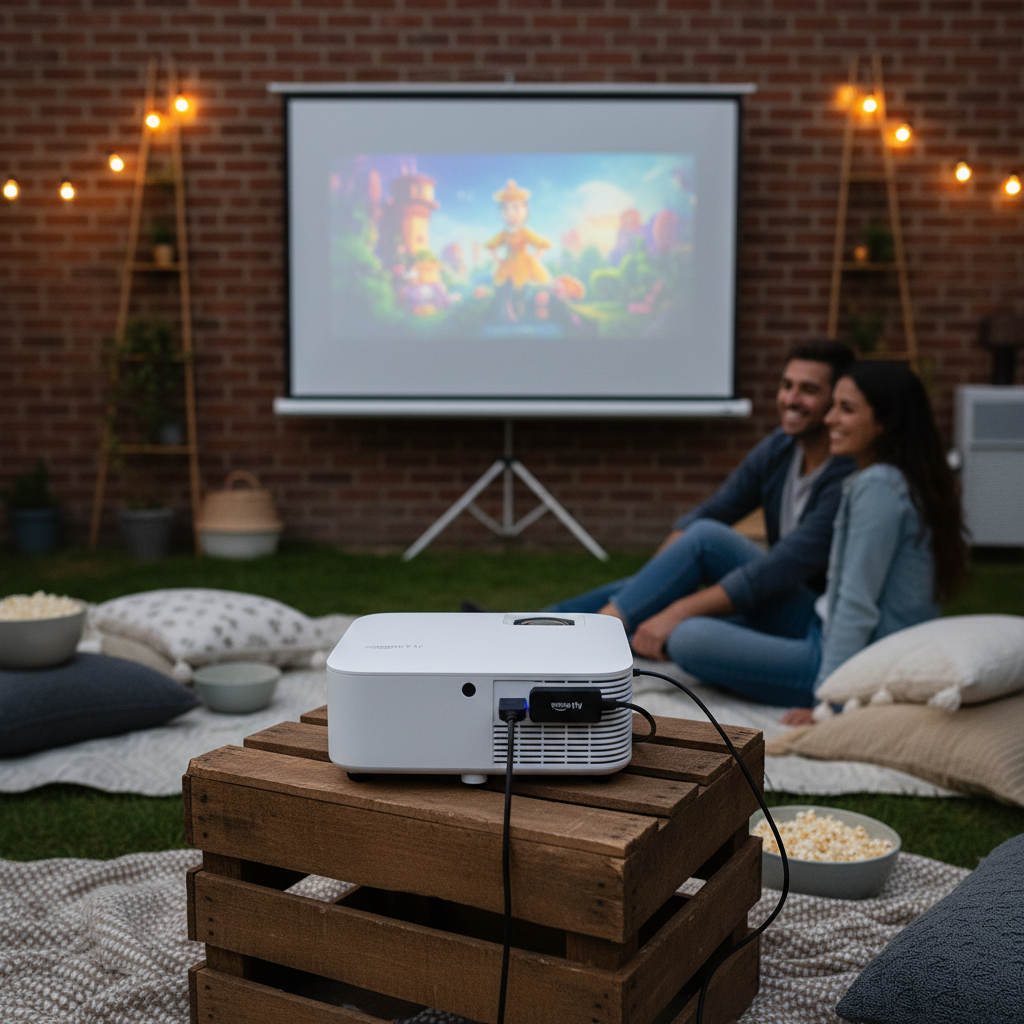
Understanding Your Devices: Fire Stick and Mini Projector Basics
Before diving into the connection process, it’s helpful to understand the core functions of each device. An Amazon Fire Stick is a compact streaming media player that plugs into your display’s HDMI port, providing access to a vast library of content from services like Netflix, Prime Video, Hulu, and more, all navigated through a user-friendly interface. It essentially turns any screen into a smart TV.
On the other hand, a mini projector is a compact, portable device designed to project images or videos onto a larger surface, such as a wall or screen. Unlike traditional, bulky projectors, mini projectors are characterized by their small size, lightweight design, and ease of transport, making them perfect for on-the-go entertainment or setting up an impromptu home theater. Most modern mini projectors come equipped with essential connectivity options, including HDMI inputs, which are crucial for our setup.
The synergy between these two devices is powerful. A Fire Stick provides the content and smart features, while a mini projector delivers the immersive, large-screen experience. Together, they create a highly versatile and portable entertainment system, ideal for diverse scenarios from backyard movie nights to business presentations or simply enjoying media in different rooms of your home.
Essential Components for a Smooth Connection
To successfully link your Amazon Fire Stick with a mini projector, you’ll need a few key components. Having these ready will make the setup process quick and hassle-free.
First, you’ll need your Amazon Fire Stick. Ensure it’s the model you intend to use and that it’s in good working order. Second, a Mini Projector with an HDMI input is fundamental. The HDMI port is the standard connection method for the Fire Stick, providing both high-definition video and audio through a single cable.
Crucially, the Fire Stick’s original power adapter is required. While some projectors feature USB ports that might provide power, it is strongly recommended to use the dedicated power adapter that came with your Fire Stick. This ensures adequate and stable power, preventing potential performance issues or “no signal” errors that can arise from insufficient power supply.
An HDMI cable might be needed, especially if your Fire Stick doesn’t plug directly into the projector’s HDMI port due to space constraints or if you prefer a longer connection. Most Fire Sticks are designed to plug straight into an HDMI port, but a short extension can be useful.
For older projectors lacking an HDMI port, you might also need an HDMI to adapter (e.g., RCA or VGA). These adapters convert the Fire Stick’s HDMI signal to a format compatible with your projector. Be aware that these conversions may affect video quality and will typically require a separate audio connection. Lastly, external speakers are often an optional but highly recommended addition, as the built-in speakers on many mini projectors may not offer the rich audio quality desired for a cinematic experience.
Step-by-Step Guide: Direct HDMI Connection (The Preferred Method)
Connecting your Fire Stick to a mini projector via HDMI is the most straightforward and recommended method, ensuring the best possible audio and video quality. Follow these steps for a seamless setup:
Step 1: Power Down Devices
|
Our Picks for the Best Mini projector in 2026
As an Amazon Associate I earn from qualifying purchases.
|
||
| Num | Product | Action |
|---|---|---|
| 1 | Magcubic Mini Projector with WiFi 6 and Bluetooth 5.4, Portable Projector 4K Support, 5W Soundbase Speaker, Auto Vertical Keystone 180°Rotatable Smart Proyector for Movie Home Outdoor |

|
| 2 | HAPPRUN Native 1080P Bluetooth Mini Projector, Full HD Portable Outdoor Movie Projector with Built-in Speaker, Compatible with Smartphone, HDMI, USB, AV, Fire Stick, PS5 for Home, Bedroom, Outdoor Use |
|
| 3 | 【Built-in APPS & Electric Focusing & 210° Rotation】Mini Projector With Wifi And Bluetooth, 1080P Portable Projector, Movie Projector for Bedroom, Supports Smartphones/TV Stick/iPad/PS5/Laptop/HDMI/USB |
|
| 4 | Optoma 4K UHD Projector HDR High Brightness Home Theater DLP Technology White Compact Design Gaming Ready Streaming Bundle HDMI Cable CPS 12 Month Protection Plan Included |
|
| 5 | Mini Projector, ELEPHAS Portable Projector for iPhone, 7000L with Synchronize Smartphone Screen, Movie Projector with 1080P HD/200 Screen Support, Compatible with Android/iOS/TV Stick/HDMI/USB/SD |
|
| 6 | CiBest Mini Projector, Upgraded Full HD 1080P Support Video Projector, Portable Small Movie Projector, Compatible with iOS/Android/Windows/TV Stick/Box/USB/HDMI |
|
| 7 | Mini Projector with WiFi 6 and Bluetooth 5.4 Built-in Apps for Bedroom Portable Projector Android 14 Smart Auto Keystone 1080P 4K Support Compatible with iOS/HDMI/TV Stick VisualCube 300 White |
|
| 8 | [Built-in Apps] CLOKOWE Mini Projector with WiFi and Bluetooth, 2026 Upgraded 1080P Smart Portable Projector with 180° Rotation, Auto Keystone, Compatible with iPhone/Android/Laptop/TV Stick/HDMI/USB |
|
| 9 | Mini Projector with Wifi 6 and Bluetooth5.4, Portable Projector 4K Support, Android 14 Smart Proyector with 200ASIN & Auto Keystone, Alwtniet HY300Pro Small Proyector for Bedroom, Movie, Outdoor |
|
| 10 | HP Smart Mini Projector with WiFi and Bluetooth, Short Throw Projector, Native 1080P Full HD, Official Licensed Apps, Auto Focus & Keystone, Portable Movie Projector for Bedroom & Outdoor |
|
Before making any connections, ensure both your mini projector and your Amazon Fire Stick are powered off and unplugged from their respective power sources. This prevents any potential electrical damage or connectivity glitches during the setup.
Step 2: Connect the Fire Stick to Projector’s HDMI Port
Locate the HDMI input port on your mini projector. It’s usually labeled “HDMI In.” Plug your Amazon Fire Stick directly into this HDMI port. If the Fire Stick is too wide and obstructs other ports, or if you prefer a bit more flexibility in placement, you can use a short HDMI extender cable (often included with Fire Sticks or readily available) between the Fire Stick and the projector’s HDMI port. Ensure the connection is snug and secure.
Step 3: Provide Power to Your Fire Stick
This is a critical step that is often overlooked. The Amazon Fire Stick requires external power to function. Plug the small end of the Fire Stick’s USB power cable into the Fire Stick itself, and then connect the other end to the dedicated power adapter that came with your Fire Stick. Plug this adapter into a wall outlet. While some mini projectors have USB ports, they may not provide enough power for consistent Fire Stick operation, leading to “no signal” or flickering issues. Always use the Fire Stick’s original power adapter for reliable performance.
Step 4: Power On Your Mini Projector
Now, plug your mini projector into its power source and turn it on. Allow it a moment to boot up and display its initial screen.
Step 5: Select the Correct HDMI Input Source
Using your mini projector’s remote control or its onboard buttons, navigate to the input or source menu. From the list of available inputs (e.g., HDMI 1, HDMI 2, AV, VGA), select the HDMI port to which your Fire Stick is connected. Once selected, you should see the Amazon Fire TV logo or the Fire Stick’s home screen projected clearly.
Step 6: Complete Fire Stick Setup (If First Time Use)
If this is your first time using the Fire Stick, or if it’s been reset, you may need to go through an initial setup process on the projected screen. This typically involves connecting to your Wi-Fi network, logging into your Amazon account, and following on-screen prompts. Once completed, you’ll be ready to stream!
Connecting Without a Direct HDMI Port (Using Adapters)
While most modern mini projectors include HDMI inputs, some older models might only offer analog connections like RCA or VGA. Don’t worry, you can still connect your Fire Stick, but it will require an adapter.
HDMI to RCA (Composite) Adapter
- When to use: If your projector has red, white (audio), and yellow (video) RCA input ports.
- What’s needed: An HDMI to RCA (Composite) converter box. These typically require their own power source.
- Setup steps:
- Connect your Fire Stick to the HDMI input on the converter box.
- Connect the red, white, and yellow RCA cables from the converter box to the corresponding RCA input ports on your projector.
- Power the converter box using its dedicated adapter.
- Ensure your Fire Stick is powered via its own adapter.
- Turn on your projector and select the “AV” or “Composite” input source.
- Audio considerations: RCA carries audio, but the quality will be analog and might not be optimal. You might still consider external speakers for a better experience.
HDMI to VGA Adapter
- When to use: If your projector only has a VGA port (a trapezoidal blue port) for video input.
- What’s needed: An HDMI to VGA converter. Crucially, since VGA only transmits video, this adapter must have a separate 3.5mm audio output port.
- Setup steps:
- Connect your Fire Stick to the HDMI input on the adapter.
- Connect a VGA cable from the adapter’s VGA output to your projector’s VGA input.
- Connect a 3.5mm audio cable from the adapter’s audio output to your projector’s audio input (if available) or directly to external speakers.
- Ensure your Fire Stick is powered via its own adapter.
- Power on your projector and select the “VGA” input source.
- Audio considerations: You must use a separate audio connection for sound, as VGA doesn’t carry it. Connect external speakers either through the adapter’s audio out or directly from the Fire Stick via Bluetooth if supported.
Important Adapter Notes: Using adapters can sometimes introduce slight delays or minor degradation in picture quality compared to a direct HDMI connection. Always ensure the adapter is of good quality and has any necessary external power for reliable performance. Older projectors might also lack HDCP (High-bandwidth Digital Content Protection) compatibility, which streaming devices like Fire Stick require. This can result in a blank screen even with the correct connections, sometimes necessitating an HDCP stripper/bypass device, though this is less common with modern equipment.
Optimizing Your Big-Screen Experience
Once your Fire Stick is connected to your mini projector, a few adjustments can significantly enhance your viewing experience. These optimizations can fine-tune both the visual and auditory aspects of your portable home theater.
Start by adjusting projector settings. The first thing to perfect is the focus; use the projector’s manual focus ring (or auto-focus feature if available) until the image is sharp and clear. Next, address keystone correction. If the projector isn’t perfectly perpendicular to the screen, the image might appear trapezoidal. Digital or manual keystone correction features allow you to square up the picture. Also, check the resolution and aspect ratio settings on your projector. Ideally, match the projector’s native resolution (e.g., 1080p) to the Fire Stick’s output for the crispest image.
For the Fire Stick itself, navigate to its Display & Audio settings. You can manually set the display resolution to match your projector’s native resolution, which can often resolve minor compatibility issues or improve clarity. While most Fire Sticks auto-detect the optimal resolution, a manual adjustment can sometimes be beneficial.
Enhancing audio is often crucial, as built-in mini projector speakers can be underwhelming.
- External Speakers via Bluetooth: Many Fire Sticks and mini projectors support Bluetooth. Pair your Fire Stick directly with Bluetooth speakers for superior sound. Alternatively, if your projector has Bluetooth output, pair your speakers with the projector.
- Wired External Speakers: If your projector has a 3.5mm audio output jack, connect a speaker system or soundbar directly. If using an HDMI to VGA/RCA adapter, connect speakers to the adapter’s audio output if it has one.
Finally, consider your room environment. Mini projectors, by nature, perform best in darker conditions. Minimize ambient light by drawing curtains or using the projector at night for the most vibrant colors and deepest blacks. Even a slight reduction in light can dramatically improve perceived image quality. Proper ventilation for both devices will also prevent overheating and ensure stable, long-term performance.
Troubleshooting Common Connection Issues
Even with the correct setup, you might encounter issues. Here’s how to address the most common problems when connecting your Fire Stick to a mini projector.
“No Signal” or Black Screen
This is perhaps the most frequent issue.
- Wrong Input Source: Double-check that you’ve selected the correct HDMI input on your projector. Many projectors have multiple inputs (HDMI 1, HDMI 2, AV, VGA), and selecting the wrong one will result in a blank screen.
- Insufficient Fire Stick Power: As emphasized, the Fire Stick needs adequate power. Ensure it’s connected to its original power adapter and plugged directly into a wall outlet, not just a projector’s USB port.
- Loose Connections: Unplug and re-plug the Fire Stick into the projector’s HDMI port and check its power cable. A loose connection can prevent signal transmission.
- Faulty Cable/Port: If possible, try a different HDMI port on your projector or test the Fire Stick with a different HDMI cable or on another display (like a TV) to rule out a faulty Fire Stick, cable, or projector port.
- HDCP Compatibility: Some older projectors lack HDCP (High-bandwidth Digital Content Protection) support, which is required by most streaming services. If this is the case, you might get a black screen. A workaround could be an HDMI splitter/stripper designed to bypass HDCP, but this is a more advanced solution.
- Resolution Mismatch: Connect your Fire Stick to a standard TV, go to its display settings, and manually set the resolution to 720p or 1080p. Sometimes, a projector struggles with the Fire Stick’s default auto-resolution.
- Reboot Devices: Unplug both the Fire Stick and the projector from power for 30 seconds, then plug them back in and restart. This can often clear temporary glitches.
No Audio
If you have a picture but no sound:
- Projector Volume: Check if the projector’s volume is muted or set too low. Use its remote to increase the volume.
- Adapter Limitations: Remember that VGA adapters do not carry audio. If you’re using an HDMI to VGA adapter, you must use a separate audio cable connected to the adapter’s audio output or pair Bluetooth speakers with your Fire Stick.
- Speaker Connection: Ensure external speakers are properly connected and powered on, whether via Bluetooth or a 3.5mm audio jack.
- Fire Stick Audio Settings: Check the audio settings on your Fire Stick. Ensure the correct audio output is selected (e.g., HDMI Audio, Bluetooth).
Poor Picture Quality
If the image is blurry, dim, or distorted:
- Focus and Keystone: Re-adjust the projector’s focus and keystone correction settings.
- Resolution: Ensure the Fire Stick’s output resolution matches your projector’s native resolution for the sharpest image.
- Ambient Light: Reduce ambient light in the room as much as possible. Even a small amount of light can significantly wash out a projected image.
- Projector Brightness: Check the projector’s brightness and contrast settings. If your projector has a “bright” or “eco” mode, try switching between them.
By methodically working through these troubleshooting steps, you can resolve most common problems and get back to enjoying your Fire Stick content on the big screen.
Choosing the Right Mini Projector for Your Fire Stick (Buying Guide)
Selecting the ideal mini projector can significantly impact your Fire Stick streaming experience. When browsing options, keep these key specifications in mind to ensure compatibility and optimal performance.
HDMI Connectivity is paramount. Ensure the mini projector has at least one HDMI input port. If you plan to connect other devices besides your Fire Stick, look for models with multiple HDMI inputs. While some Fire Sticks plug directly into the port, a projector with a slightly recessed HDMI port or one that includes an HDMI extension cable can be more convenient.
Resolution Support dictates the clarity and detail of your projected image. For a satisfying streaming experience with a Fire Stick, aim for a projector with a native resolution of at least 720p (HD). However, 1080p (Full HD) is highly recommended for sharper text and crisper video, bringing out the best in Fire Stick content. If your Fire Stick supports 4K, a 4K-compatible projector will allow you to take full advantage of that resolution, provided your content and internet speed support it.
Brightness, measured in ANSI Lumens, is crucial for visibility. The brighter the projector, the more tolerant it will be of ambient light. For dark rooms, 100-500 ANSI lumens might suffice, but for rooms with some ambient light or outdoor use after dusk, aim for 500-1000+ ANSI lumens for a clearer, more vibrant picture. A higher contrast ratio (e.g., 10,000:1 or higher) will also produce deeper blacks and more vibrant colors, enhancing overall image depth.
Consider the audio output options. While all Fire Sticks can output audio via HDMI, many mini projectors have modest built-in speakers. Look for models with a 3.5mm audio jack for wired external speakers or, even better, Bluetooth connectivity to easily pair with wireless soundbars or headphones.
Finally, check for a USB power output port on the projector. Some mini projectors offer a powered USB port (e.g., 5V/1A or 5V/2A) that can potentially power your Fire Stick directly. While convenient, always verify that the port provides sufficient and stable power for your specific Fire Stick model to avoid performance issues. Prioritizing these features will help you choose a mini projector that truly complements your Fire Stick for an exceptional viewing experience.
Maintenance Tips for Your Mini Projector and Fire Stick
To ensure the longevity and optimal performance of your mini projector and Fire Stick, regular maintenance is key. These simple practices can prevent common issues and keep your entertainment setup running smoothly for years to come.
First, keep your devices clean. Dust can accumulate on the projector lens, affecting image clarity, and can also enter the cooling vents, leading to overheating. Use a soft, lint-free cloth to gently wipe the projector lens and exterior casing. For the Fire Stick, a quick wipe down can prevent dust buildup. Avoid using harsh chemicals or abrasive materials that could damage the surfaces.
Ensure proper ventilation for your mini projector. Projectors generate heat, and good airflow is essential to prevent overheating, which can shorten the lifespan of internal components and lead to performance degradation. Make sure the projector’s intake and exhaust vents are unobstructed and that there’s ample space around the device for air circulation. Avoid placing it on soft surfaces like carpets or blankets that can block vents.
Regular software updates are also important. Both your Fire Stick and mini projector (if it has smart features or firmware) periodically release updates that can improve performance, add new features, fix bugs, and enhance security. Check for and install these updates regularly through the device’s settings menu to ensure you have the latest software. This can often resolve unexpected glitches or compatibility problems.
By following these straightforward maintenance tips, you can protect your investment and continue to enjoy high-quality, reliable big-screen entertainment with your Fire Stick and mini projector.
Conclusion
Connecting your Amazon Fire Stick to a mini projector is a fantastic way to unlock a truly immersive and portable entertainment experience. Whether you’re setting up a movie night in the backyard, giving a dynamic presentation, or simply want to enjoy your favorite content on a bigger screen, the process is straightforward with the right approach. By ensuring secure HDMI connections, providing adequate power to your Fire Stick, and selecting the correct input source, you’ll be streaming in no time.
Remember that while direct HDMI is the simplest method, adapters offer solutions for older projectors, and careful optimization of display and audio settings will elevate your viewing. Should you encounter any issues, most can be resolved by checking power, connections, input selection, and basic troubleshooting. With these steps, your Fire Stick and mini projector combine to create a versatile and powerful entertainment hub. What grand cinematic adventure will you embark on first with your new setup?
Frequently Asked Questions
Can I power my Fire Stick from the projector’s USB port?
While some mini projectors have USB ports, it is strongly recommended to power your Fire Stick using its original power adapter plugged into a wall outlet. Projector USB ports may not provide sufficient, consistent power, leading to “no signal” errors or unreliable performance from your Fire Stick.
Why am I getting “no signal” when connecting my Fire Stick?
“No signal” is often caused by selecting the wrong HDMI input on your projector, insufficient power to the Fire Stick (ensure it’s using its dedicated adapter), loose HDMI connections, or a compatibility issue like HDCP. Try cycling through inputs, replugging cables, and rebooting both devices.
How do I get sound when connecting my Fire Stick to an older projector?
If your projector uses an HDMI to VGA adapter, VGA only carries video, so you’ll need separate audio. Connect external speakers via the adapter’s 3.5mm audio output, or if your Fire Stick supports it, pair Bluetooth speakers directly with the Fire Stick itself.
Do I need a special HDMI cable for Fire Stick with a mini projector?
No, a standard HDMI cable is perfectly suitable. Most Fire Sticks are designed to plug directly into an HDMI port. If space is an issue, a short HDMI extension cable (often included with the Fire Stick or readily available) can be helpful but isn’t a special type of cable.
Can I use any Fire Stick model with a mini projector?
Generally, yes. All Amazon Fire Stick models use an HDMI output, making them compatible with any mini projector that has an HDMI input. The primary differences between Fire Stick models (like 4K support or processing speed) will relate to the quality and performance of the streaming experience, not the basic connectivity method.