In a world increasingly reliant on seamless digital experiences, the choice of video connection can significantly impact your setup, whether for work, gaming, or entertainment. As we navigate 2026, two titans stand at the forefront: HDMI and USB-C. Each offers unique advantages, but understanding their evolving capabilities is crucial to selecting the “best” connection for your specific needs. This guide will cut through the technical jargon, providing you with a clear perspective on HDMI versus USB-C video, helping you make an informed decision for today and the future.
Understanding HDMI and USB-C Video Connections
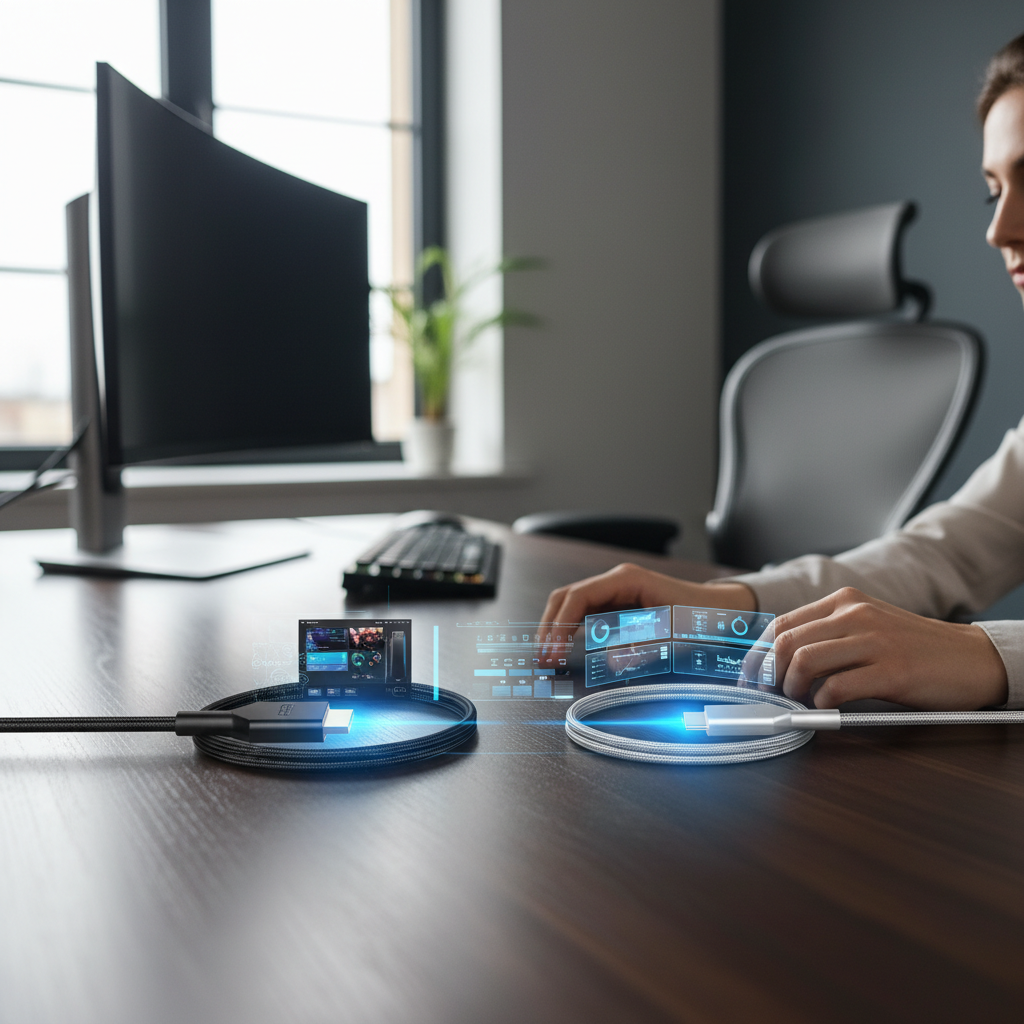
Before diving into a direct comparison, it’s essential to grasp the fundamental nature of each connection. HDMI, or High-Definition Multimedia Interface, has long been the ubiquitous standard for transmitting high-quality digital audio and video. It is a dedicated A/V interface, designed specifically for connecting devices like Blu-ray players, gaming consoles, and computers to televisions, projectors, and monitors. Over the years, HDMI has seen numerous iterations, with HDMI 2.1 being the prevailing high-performance standard, and the recently introduced HDMI 2.2 pushing boundaries even further.
USB-C, or USB Type-C, on the other hand, is a universal connector standard renowned for its versatility. Unlike HDMI, USB-C is not solely an A/V interface but a multi-purpose port capable of transferring data, power, and video signals simultaneously. Its reversible design and symmetrical connector make it incredibly user-friendly. For video output, USB-C leverages “Alternate Modes,” primarily DisplayPort Alternate Mode (DP Alt Mode) or Thunderbolt technology, to transmit video signals over its pins. This multifunctionality makes USB-C a cornerstone of modern, streamlined connectivity, especially for a wide array of devices from smartphones to high-end laptops.
Key Criteria for Choosing Your Video Connection
When deciding between HDMI and USB-C for your video needs, several critical factors come into play. These criteria define the performance, convenience, and compatibility you can expect from each standard in 2026.
Bandwidth and Data Transfer Capabilities
|
Our Picks for the Best Mini projector in 2026
As an Amazon Associate I earn from qualifying purchases.
|
||
| Num | Product | Action |
|---|---|---|
| 1 | HAPPRUN Native 1080P Bluetooth Mini Projector, Full HD Portable Outdoor Movie Projector with Built-in Speaker, Compatible with Smartphone, HDMI, USB, AV, Fire Stick, PS5 for Home, Bedroom, Outdoor Use |

|
| 2 | Mini Projector with WiFi 6 and Bluetooth 5.4 Built-in Apps for Bedroom Portable Projector Android 14 Smart Auto Keystone 1080P 4K Support Compatible with iOS/HDMI/TV Stick VisualCube 300 White |
|
| 3 | Mini Projector, ELEPHAS Portable Projector for iPhone, 7000L with Synchronize Smartphone Screen, Movie Projector with 1080P HD/200 Screen Support, Compatible with Android/iOS/TV Stick/HDMI/USB/SD |
|
| 4 | Mini Projector with Wifi 6 and Bluetooth5.4, Portable Projector 4K Support, Android 14 Smart Proyector with 200ASIN & Auto Keystone, Alwtniet HY300Pro Small Proyector for Bedroom, Movie, Outdoor |
|
| 5 | 【Built-in APPS & Electric Focusing & 210° Rotation】Mini Projector With Wifi And Bluetooth, 1080P Portable Projector, Movie Projector for Bedroom, Supports Smartphones/TV Stick/iPad/PS5/Laptop/HDMI/USB |
|
| 6 | CiBest Mini Projector, Upgraded Full HD 1080P Support Video Projector, Portable Small Movie Projector, Compatible with iOS/Android/Windows/TV Stick/Box/USB/HDMI |
|
| 7 | Optoma 4K UHD Projector HDR High Brightness Home Theater DLP Technology White Compact Design Gaming Ready Streaming Bundle HDMI Cable CPS 12 Month Protection Plan Included |
|
| 8 | Magcubic Mini Projector with WiFi 6 and Bluetooth 5.4, Portable Projector 4K Support, 5W Soundbase Speaker, Auto Vertical Keystone 180°Rotatable Smart Proyector for Movie Home Outdoor |
|
| 9 | HP Smart Mini Projector with WiFi and Bluetooth, Short Throw Projector, Native 1080P Full HD, Official Licensed Apps, Auto Focus & Keystone, Portable Movie Projector for Bedroom & Outdoor |
|
| 10 | [Built-in Apps] CLOKOWE Mini Projector with WiFi and Bluetooth, 2026 Upgraded 1080P Smart Portable Projector with 180° Rotation, Auto Keystone, Compatible with iPhone/Android/Laptop/TV Stick/HDMI/USB |
|
The bandwidth of a video connection dictates the amount of data it can transmit per second, directly influencing the maximum resolution, refresh rate, and color depth it can support. HDMI 2.1, currently widespread, offers a substantial 48 Gbps, capable of handling 4K at 120Hz and even 8K at 60Hz. Looking to 2026, the newly introduced HDMI 2.2 further elevates this, promising even higher bandwidth for demanding applications like 4K at 480Hz and 8K at 240Hz, making it ideal for the most intensive visual tasks.
USB-C’s video bandwidth, however, is more nuanced. When operating in DisplayPort Alt Mode, it can achieve performance comparable to native DisplayPort connections. Thunderbolt, which shares the USB-C connector, offers even greater capabilities, with Thunderbolt 4 providing up to 40 Gbps of bandwidth, supporting two 4K displays or one 8K display. The key here is that USB-C needs “full-featured” cables and ports to maximize video performance, as some basic USB-C ports or cables may only support lower bandwidths or no video output at all.
Resolution and Refresh Rates
Both HDMI and USB-C are equipped to handle today’s high-resolution and high-refresh-rate demands. HDMI 2.1 is already capable of 4K at 120Hz and 8K at 60Hz. With HDMI 2.2, these figures are dramatically boosted to 4K at 480Hz and 8K at 240Hz, catering to the most cutting-edge displays and ultra-high-performance gaming or professional video editing.
USB-C, through its DisplayPort Alt Mode and Thunderbolt implementations, also offers impressive resolution and refresh rate support. Many modern USB-C enabled devices and monitors can readily achieve 4K at 60Hz or even 4K at 120Hz. Thunderbolt 4, in particular, empowers single-cable setups for dual 4K monitors or a single 8K display, proving that USB-C is a robust contender for high-fidelity video transmission.
Versatility and Device Compatibility
HDMI is a dedicated video and audio interface, making it universally compatible with almost all televisions, projectors, and many monitors. Its widespread adoption ensures a straightforward, plug-and-play experience for traditional home entertainment and desktop setups. However, its dedicated nature means it does not handle data or power delivery.
USB-C shines in versatility. A single USB-C port can manage video, audio, data transfer, and power delivery. This “one cable for everything” philosophy is a significant advantage for modern, minimalist setups, especially with laptops and smartphones that increasingly rely on USB-C as their primary port. While not every USB-C port supports video out, its increasing prevalence means that for devices equipped with DP Alt Mode or Thunderbolt, it offers unparalleled flexibility. Adapters and docking stations are readily available to convert USB-C signals to HDMI or other display types, bridging compatibility gaps.
Power Delivery and Charging
One of USB-C’s most compelling features is its integrated power delivery capability. A single USB-C cable can deliver up to 100 watts of power (and even more with the latest USB PD 3.1 standard), which is sufficient to charge most laptops, tablets, and even power some monitors directly. This eliminates the need for separate power bricks and cables, contributing to a cleaner, more portable workspace.
HDMI, by design, does not carry power. Devices connected via HDMI require their own separate power source, which can lead to more cable clutter and less streamlined setups. For situations where power delivery alongside video is a priority, USB-C clearly has the edge.
Audio Support and Ancillary Features
HDMI is renowned for its comprehensive audio support, including multi-channel audio formats like Dolby Atmos and DTS:X, as well as features like eARC (enhanced Audio Return Channel) for high-quality audio passthrough to sound systems. It also natively supports Dynamic HDR and Variable Refresh Rate (VRR), crucial for optimal gaming experiences.
USB-C’s audio capabilities largely mirror those of DisplayPort when in Alt Mode, supporting high-quality multi-channel audio. While it can also pass through HDR and VRR signals, the specific implementation and features might vary depending on the USB-C port, cable, and adapter used. For dedicated home theater enthusiasts, HDMI often provides a more robust and consistent feature set for audio.
Cable Length and Signal Integrity
Both HDMI and USB-C cables can experience signal degradation over longer distances. For HDMI, high-speed cables can reliably carry signals up to about 15-20 meters, though active optical cables can extend this much further.
USB-C cables, particularly those designed for high-bandwidth video (like Thunderbolt 4 cables), typically perform best over shorter distances, often under 2 meters. For longer runs or when using multiple adapters, there’s a higher potential for signal issues or a reduction in performance. Ensuring high-quality, certified cables is paramount for both, but especially for USB-C video configurations.
HDMI vs. USB-C: A Detailed Comparison (2026 Perspective)
To summarize the key differences and help you decide, here’s a detailed comparison:
| Feature | HDMI (High-Definition Multimedia Interface) | USB-C (Universal Serial Bus Type-C) |
|---|---|---|
| Primary Purpose | Dedicated digital audio/video transmission | Multifunction: data, power, video, audio (via Alternate Modes like DisplayPort or Thunderbolt) |
| Connector Type | Trapezoidal, non-reversible (Standard A, Mini C, Micro D) | Small, oval, reversible |
| Latest Standard (2026) | HDMI 2.2 (introduced CES 2025) | USB4 (Thunderbolt 4 compatible), DisplayPort 2.1 (via Alt Mode) |
| Max Bandwidth | Up to 48 Gbps (HDMI 2.1), higher with HDMI 2.2 | Up to 40 Gbps (Thunderbolt 4), 80 Gbps (DisplayPort 2.1 via USB4) |
| Max Resolution/Refresh | 4K@480Hz, 8K@240Hz (HDMI 2.2); 10K@120Hz (HDMI 2.1) | Dual 4K@60Hz, Single 8K@60Hz (Thunderbolt 4); higher with DP 2.1 Alt Mode |
| Power Delivery | No | Yes, up to 100W (standard), higher with PD 3.1 |
| Audio Support | Comprehensive, including eARC, Dolby Atmos, DTS:X | High-quality multi-channel audio (via DisplayPort Alt Mode) |
| Ancillary Features | Dynamic HDR, VRR, ALLM, QFT | Supports HDR, VRR (via Alt Mode); also carries data and network signals (with hubs/docks) |
| Compatibility | Universal with TVs, projectors, gaming consoles; widely used in monitors | Becoming standard for laptops, tablets, smartphones; requires DP Alt Mode/Thunderbolt for video |
| Cable Simplicity | Single cable for A/V | Single cable for A/V, data, power (requires compatible devices/cables) |
| Adapters Required | Rarely for primary connection; sometimes for older devices | Often for connecting to HDMI displays from USB-C-only devices |
Where Each Connection Shines: Use Cases
The “best” connection ultimately depends on your specific application and devices.
Home Entertainment and Gaming Consoles
For connecting gaming consoles (like PlayStation 5 or Xbox Series X) to 4K TVs or setting up a dedicated home theater system, HDMI remains the undisputed champion. HDMI 2.1’s features such as VRR, ALLM (Auto Low Latency Mode), and eARC are natively supported by most modern TVs and consoles, ensuring the best possible picture and sound quality with minimal hassle. HDMI 2.2 will further solidify this position with its future-proof bandwidth for ultra-high refresh rates.
Modern Workstations and Laptops
USB-C is rapidly becoming the preferred choice for modern laptops, ultrabooks, and workstations. Its ability to handle video, data, and power over a single cable creates a clean, efficient workspace. With a USB-C compatible monitor or a quality docking station, you can connect your laptop, external display(s), peripherals, and even charge your device, all through one port. This is ideal for professionals who value portability, minimal cable clutter, and rapid desk setup.
Professional A/V and High-Performance Gaming PCs
For professional video editors, graphic designers, or PC gamers demanding the absolute highest performance, both standards have their place. High-end gaming monitors often leverage DisplayPort (and thus, USB-C with DP Alt Mode or Thunderbolt) for features like high refresh rates (e.g., 240Hz, 360Hz) and G-Sync/FreeSync technologies. However, with HDMI 2.2’s aggressive refresh rate targets, it will increasingly compete in this high-performance PC space. For complex multi-monitor setups, Thunderbolt via USB-C offers remarkable daisy-chaining capabilities and bandwidth.
Tips for Optimizing Your Video Connection Experience
Regardless of your chosen connection, a few best practices can help ensure optimal performance and reliability:
- Invest in Quality Cables: Don’t skimp on cables. Certified HDMI 2.1/2.2 cables and full-featured USB-C/Thunderbolt cables are essential for achieving advertised resolutions, refresh rates, and features.
- Check Device Specifications: Always verify that your device’s USB-C port supports DisplayPort Alt Mode or Thunderbolt if you intend to use it for video output. Not all USB-C ports are created equal.
- Keep Drivers Updated: Ensure your graphics drivers and operating system are always up to date. Outdated software can often be the culprit for connectivity issues or suboptimal performance, particularly with USB-C adapters.
- Understand Adapter Needs: If you’re connecting a USB-C device to an HDMI display, a quality adapter or hub is crucial. Choose one that explicitly supports the resolution and refresh rate you require, and ideally, one that offers power pass-through.
Troubleshooting Common Video Connection Issues
Even with the right cables and devices, you might encounter occasional issues. Here’s a quick guide to common problems and their solutions:
- No Display Output: Check if cables are securely plugged in at both ends. Ensure your display is set to the correct input source. For USB-C, confirm your device’s USB-C port supports video output (DP Alt Mode/Thunderbolt).
- Flickering or Unstable Image: This often indicates a loose connection, an incompatible cable/adapter, or insufficient bandwidth. Try reseating cables, using a shorter/higher-quality cable, or checking for driver updates. Sometimes, reducing the resolution or refresh rate temporarily can stabilize the connection.
- Low Resolution or Poor Quality: Verify that both your source device and display are configured for the desired resolution and refresh rate. Ensure your cable and adapter support these specifications.
- Audio Issues: Confirm that audio output is correctly selected in your device’s sound settings. For HDMI, check eARC/ARC settings on your TV and sound system.
- Adapter Overheating: Some USB-C adapters can get warm under heavy load. Ensure it has adequate ventilation and is not trying to power too many devices beyond its capacity. If it’s consistently overheating and malfunctioning, it might be faulty or insufficient for your use case.
- Device Not Recognized: Update your device’s drivers. Try connecting the adapter to a different USB-C port or testing it with another device to isolate the problem.
Making the Right Choice: Your 2026 Video Connection Buying Guide
As an Admin with over a decade of experience in display technology, the landscape of video connectivity in 2026 is exciting but requires careful consideration. Here’s a pragmatic approach to making your decision:
Assess Your Primary Devices and Usage
Start by listing your main devices (laptop, desktop PC, gaming console, streaming box) and how you intend to use them (gaming, movie watching, productivity, presentations). If your primary setup revolves around a home theater with a TV and console, HDMI will likely remain your most straightforward and feature-rich option. If you primarily use a modern laptop or tablet, especially for a clean, portable workstation, USB-C with its multifunctionality is often superior.
Consider Future-Proofing and Budget
While HDMI 2.2 represents the cutting edge for dedicated video, devices with high-bandwidth Thunderbolt (via USB-C) offer broader future-proofing due to their versatility. Factor in the cost of high-quality cables and potential adapters. A premium USB-C hub might initially cost more than a simple HDMI cable, but it could replace multiple cables and adapters, offering long-term value.
Review Device Specifications and User Feedback
Before purchasing, meticulously check the specifications of your source devices (e.g., does your laptop’s USB-C port support DisplayPort Alt Mode? What HDMI version does your TV have?) and your display. Read user reviews for specific cables, adapters, and hubs, paying attention to compatibility notes and reported issues. This can save you from frustrating trial and error.
Compare Cable and Adapter Options
Sometimes, the “best” solution involves a hybrid approach, using a USB-C to HDMI adapter or a docking station. Compare different options, considering factors like supported resolutions, refresh rates, power pass-through capabilities, and additional ports (e.g., USB-A, Ethernet) offered by hubs.
The battle between HDMI and USB-C for the title of “best connection” in 2026 isn’t about one completely dominating the other. Instead, it highlights a bifurcation in how we connect our devices. HDMI continues its reign in dedicated A/V environments, especially home theaters and console gaming, with its latest 2.2 standard pushing performance boundaries further. USB-C, driven by its incredible versatility and integrated power delivery, has cemented its place as the go-to for modern, minimalist setups, particularly for laptops and professional workstations. The right choice hinges entirely on your specific devices, usage patterns, and priorities. What does your current setup need to thrive, and how do you envision your digital life evolving over the next few years?
Frequently Asked Questions
Is USB-C going to completely replace HDMI in the near future?
While USB-C is rapidly gaining traction and replacing HDMI ports on many modern laptops and monitors, HDMI is unlikely to disappear entirely. Its strong presence in home entertainment systems, TVs, and gaming consoles means it will remain a relevant standard for many years to come, coexisting with USB-C.
Can all USB-C cables carry video signals?
No, not all USB-C cables are created equal. For a USB-C cable to carry video, both the port on your device and the cable itself must support an Alternate Mode, such as DisplayPort Alt Mode or Thunderbolt. Always check the specifications of both your device and the cable.
What is HDMI 2.2 and why is it important for 2026?
HDMI 2.2, introduced at CES 2025, is the latest iteration of the HDMI standard, building upon HDMI 2.1. It is crucial for 2026 because it offers significantly higher bandwidth, better latency, and faster response times, supporting ultra-high refresh rates like 4K at 480Hz and 8K at 240Hz, vital for future high-performance displays and professional applications.
Do I need an adapter to connect my USB-C laptop to an HDMI monitor?
Yes, typically you will need a USB-C to HDMI adapter or a USB-C hub with an HDMI output. While USB-C carries the video signal, the display usually expects a native HDMI input, requiring an adapter to convert the signal.
Which is better for gaming, HDMI 2.1 or USB-C (Thunderbolt 4)?
For console gaming on TVs, HDMI 2.1 (and soon 2.2) is generally superior due to its native support for gaming-specific features like VRR and ALLM, which are widely implemented in TVs. For PC gaming with high-refresh-rate monitors, Thunderbolt 4 (which uses the USB-C connector) can offer excellent performance, often leveraging DisplayPort protocols for higher refresh rates and technologies like G-Sync/FreeSync.
Can USB-C charge my monitor while also providing video?
Yes, many modern USB-C monitors can receive both video signals and power delivery through a single USB-C cable. This allows your laptop to power the monitor (if the wattage is sufficient) while also sending video, creating a very clean and efficient setup.
What should I do if my USB-C to HDMI adapter is overheating?
If your adapter is overheating, ensure it has proper ventilation and is not trying to draw or deliver more power than it’s designed for. Unplug it and let it cool down. If the issue persists or causes performance problems, consider investing in a higher-quality, perhaps actively cooled, adapter or a more robust docking station.