Few things are as frustrating as settling in to watch your favorite show or start a gaming session, only to be greeted by a stark “No Signal” message on your screen. This common HDMI issue can turn an evening of entertainment into a head-scratching troubleshooting mission. But don’t despair! Most “No Signal” problems stemming from an HDMI connection are easily fixable with a systematic approach.
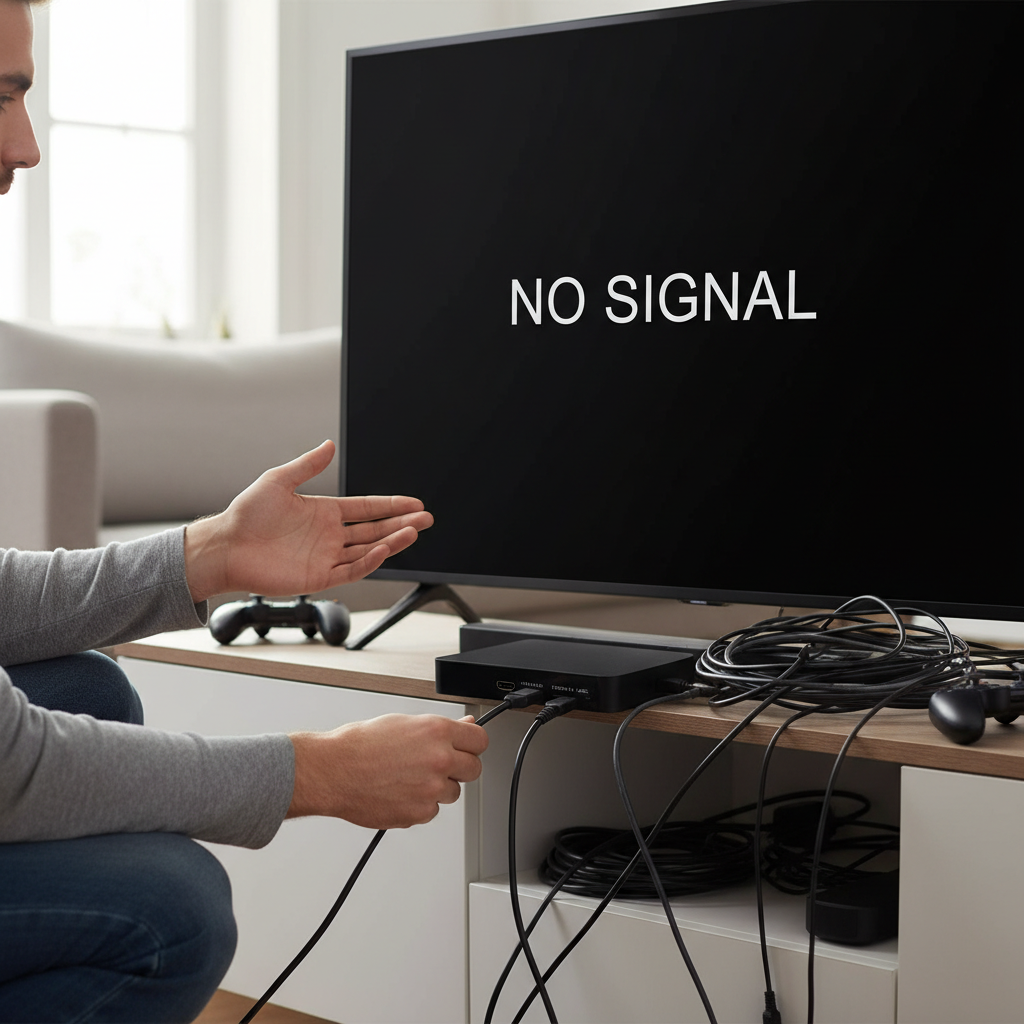
This comprehensive guide is designed to walk you through every possible solution, from the simplest checks to more advanced diagnostics. Whether you’re connecting a gaming console, a Blu-ray player, a PC, or a streaming device, we’ll help you pinpoint the problem and get your visuals back on screen. Let’s dive in and transform that blank screen into a vibrant display.
Understanding the HDMI “No Signal” Error
|
Our Picks for the Best Mini projector in 2026
As an Amazon Associate I earn from qualifying purchases.
|
||
| Num | Product | Action |
|---|---|---|
| 1 | 【Built-in APPS & Electric Focusing & 210° Rotation】Mini Projector With Wifi And Bluetooth, 1080P Portable Projector, Movie Projector for Bedroom, Supports Smartphones/TV Stick/iPad/PS5/Laptop/HDMI/USB |

|
| 2 | [Built-in Apps] CLOKOWE Mini Projector with WiFi and Bluetooth, 2026 Upgraded 1080P Smart Portable Projector with 180° Rotation, Auto Keystone, Compatible with iPhone/Android/Laptop/TV Stick/HDMI/USB |
|
| 3 | Mini Projector with Wifi 6 and Bluetooth5.4, Portable Projector 4K Support, Android 14 Smart Proyector with 200ASIN & Auto Keystone, Alwtniet HY300Pro Small Proyector for Bedroom, Movie, Outdoor |
|
| 4 | Magcubic Mini Projector with WiFi 6 and Bluetooth 5.4, Portable Projector 4K Support, 5W Soundbase Speaker, Auto Vertical Keystone 180°Rotatable Smart Proyector for Movie Home Outdoor |
|
| 5 | Mini Projector with WiFi 6 and Bluetooth 5.4 Built-in Apps for Bedroom Portable Projector Android 14 Smart Auto Keystone 1080P 4K Support Compatible with iOS/HDMI/TV Stick VisualCube 300 White |
|
| 6 | HAPPRUN Native 1080P Bluetooth Mini Projector, Full HD Portable Outdoor Movie Projector with Built-in Speaker, Compatible with Smartphone, HDMI, USB, AV, Fire Stick, PS5 for Home, Bedroom, Outdoor Use |
|
| 7 | CiBest Mini Projector, Upgraded Full HD 1080P Support Video Projector, Portable Small Movie Projector, Compatible with iOS/Android/Windows/TV Stick/Box/USB/HDMI |
|
| 8 | HP Smart Mini Projector with WiFi and Bluetooth, Short Throw Projector, Native 1080P Full HD, Official Licensed Apps, Auto Focus & Keystone, Portable Movie Projector for Bedroom & Outdoor |
|
| 9 | Mini Projector, ELEPHAS Portable Projector for iPhone, 7000L with Synchronize Smartphone Screen, Movie Projector with 1080P HD/200 Screen Support, Compatible with Android/iOS/TV Stick/HDMI/USB/SD |
|
| 10 | Optoma 4K UHD Projector HDR High Brightness Home Theater DLP Technology White Compact Design Gaming Ready Streaming Bundle HDMI Cable CPS 12 Month Protection Plan Included |
|
When your TV or monitor displays “No Signal,” it means it’s not receiving any data from the device connected via HDMI. HDMI (High-Definition Multimedia Interface) is a digital standard that transmits both audio and video signals through a single cable. This error indicates a breakdown in communication somewhere along this digital pathway. It could be a simple loose cable, a configuration issue, or a more complex hardware problem. Understanding this basic premise helps frame our troubleshooting efforts.
Why Your HDMI Might Be Saying “No Signal”: Common Causes
Before we jump into solutions, it’s helpful to understand the most frequent culprits behind the “No Signal” message. Identifying the potential cause can often speed up the troubleshooting process.
- Faulty Physical Connections: The most common reason. A cable might be loose, damaged, or simply plugged into the wrong port.
- Incorrect Input Selection: Your display might be set to the wrong HDMI input channel, even if everything else is connected correctly.
- Device Power Issues: The source device (e.g., console, PC) might not be fully powered on or might be experiencing a temporary glitch.
- Resolution Mismatches: The resolution output by your source device might not be supported by your display, leading to a blank screen.
- Outdated Software/Firmware: Obsolete graphics drivers on a PC or outdated firmware on a TV or source device can disrupt HDMI communication.
- Hardware Failures: In some cases, a port on your TV or source device, or even the HDMI cable itself, might be physically damaged or defective.
Step-by-Step Solutions to Resolve “No Signal” on HDMI
Let’s tackle this problem systematically, starting with the simplest and most common fixes before moving to more involved diagnostics.
1. The Basics: Checking Your Physical Connection
Always begin with the obvious. You’d be surprised how often a simple check resolves the issue.
- Securely Plug It In:
The first step is to ensure that both ends of your HDMI cable are firmly plugged into their respective ports. Disconnect and then reconnect the cable on both your source device (like a game console or PC) and your display (TV or monitor). Sometimes, even a slight wiggle can dislodge a connection. - Inspect the Cable for Damage:
Carefully examine the entire length of your HDMI cable for any visible signs of damage, such as bends, cuts, frayed wiring, or bent pins on the connectors. A compromised cable cannot transmit signals reliably. If you spot any damage, replacing the cable is your next move. - Try a Different HDMI Cable:
Even if your current cable appears fine, it might be internally damaged. Test your setup with a spare HDMI cable if you have one. This helps rule out the cable as the source of the problem. High-quality cables are recommended for optimal performance and longevity. - Test Another HDMI Port:
If your display has multiple HDMI ports (e.g., HDMI 1, HDMI 2, HDMI 3), try plugging your device into a different port. This helps determine if the original port on your TV or monitor is faulty. If another port works, you’ve identified a defective port.
2. The Power Play: Restarting Your Devices
A simple restart can often clear temporary glitches and re-establish the HDMI “handshake” between devices.
- Perform a Full Power Cycle:
Turn off both your source device and your TV/monitor. Unplug them completely from their power outlets. Wait for at least 60 seconds. This allows any residual power to drain, effectively resetting the internal components. Then, plug everything back in and turn your devices on. - Mind the Power-On Order:
Sometimes, the order in which you power on your devices can matter for the HDMI connection to establish correctly. A common sequence is to turn on the display (TV/monitor) first, then turn on the source device (console, PC). If that doesn’t work, try reversing the order: source device first, then display. Experiment to see which sequence works for your specific setup.
3. Source Selection and Device Status
An active connection doesn’t guarantee the correct display settings.
- Ensure Your Source Device is On:
This might sound obvious, but double-check that your source device is powered on and not in standby mode. If it’s a computer, ensure it’s not asleep. A device that is off or sleeping won’t send an HDMI signal. - Select the Correct HDMI Input:
Your TV or monitor usually has several input sources (e.g., HDMI 1, HDMI 2, AV, Component). Use your TV remote or monitor’s physical buttons to cycle through the input sources until you find the one corresponding to the HDMI port your device is connected to. The “Input” or “Source” button is usually the one you’re looking for.
4. Display Settings and Compatibility
Sometimes the problem isn’t the connection itself, but what’s being sent over it.
- Adjust Display Resolution:
If your source device is set to a resolution or refresh rate that your display doesn’t support, you’ll likely see a “No Signal” message. For a PC, boot into Safe Mode or connect it to another monitor to change the display settings to a standard resolution (like 1080p or 720p) before reconnecting to your primary display. For gaming consoles, you might need to perform a factory reset of video settings (check your console’s manual for specific instructions). - Check HDCP Compatibility:
HDCP (High-bandwidth Digital Content Protection) is a form of digital copy protection. If your display or HDMI cable doesn’t fully support HDCP, especially with newer devices or content, you might get a “No Signal” error. Ensuring you’re using a modern, high-quality HDMI cable (like an HDMI 2.0 or 2.1 cable) can often resolve HDCP-related issues.
5. Software and Driver Updates
Outdated software is a frequent cause of compatibility issues.
- Update Graphics Drivers (for PCs):
If you’re connecting a PC, outdated or corrupt graphics card drivers can prevent a proper HDMI signal. Visit your graphics card manufacturer’s website (NVIDIA, AMD, Intel) to download and install the latest drivers. A clean installation is often recommended. - Update Device Firmware (TVs, Consoles, Streaming Devices):
Many smart TVs, gaming consoles, and streaming devices receive regular firmware updates that can improve compatibility and fix bugs. Check your device’s settings menu for an option to update its firmware.
6. Isolate the Problem: Testing Components
If the above steps haven’t worked, it’s time to figure out which piece of equipment is the culprit: the source device, the cable, or the display.
- Try a Different Source Device:
Connect a completely different source device (e.g., another laptop, a different game console, a DVD player) to your TV/monitor using the same HDMI port and cable. If the new device works, the problem lies with your original source device. - Test with Another Display:
Connect your problematic source device to a different TV or monitor (if available) using the same HDMI cable. If it works on the other display, then your original TV/monitor is likely the issue.
7. Advanced Troubleshooting (Specific to PCs)
For PC users, there are a few additional layers to check.
- Check BIOS/UEFI Settings:
Occasionally, BIOS/UEFI settings can be altered, affecting display output. If you have integrated graphics and a dedicated graphics card, ensure the correct output (usually PCIe for dedicated cards) is prioritized. Accessing BIOS/UEFI usually requires pressing a key like Del, F2, F10, or F12 during startup. - Investigate Memory Issues:
Faulty or improperly seated RAM can prevent a PC from booting correctly, leading to no display output. If you’re comfortable doing so, try reseating your RAM sticks or testing them individually if you have multiple modules. This is a less common cause but worth considering if all other PC-specific solutions fail.
Preventing Future HDMI “No Signal” Headaches
A little care goes a long way in maintaining a stable HDMI connection.
- Use Quality Cables: Invest in well-made HDMI cables. Cheap cables can be prone to interference and internal damage, leading to frequent issues.
- Handle Cables with Care: Avoid bending HDMI cables sharply, especially near the connectors, and don’t yank them out of ports. Proper handling extends their lifespan.
- Keep Software Updated: Regularly update your device firmware and graphics drivers. These updates often include important bug fixes and compatibility improvements that prevent “No Signal” errors.
“A persistent ‘No Signal’ error, while annoying, is usually a simple fix away. Most often, it’s a connection issue or a setting mismatch. Stay calm, follow the steps, and you’ll get your display back in action.” – Tech Expert, ReviewBCM.com Admin
When to Call a Professional
If you’ve systematically worked through all these troubleshooting steps and still can’t get a signal, it might be time to seek professional help. This could indicate a deeper hardware problem, such as a damaged HDMI port on your TV or source device, or an internal component failure that requires specialized repair. Don’t hesitate to contact the manufacturer’s support or a reputable electronics repair service.
Conclusion
The “No Signal” message can be a vexing obstacle to enjoying your digital content, but with the right approach, it’s a problem you can almost always solve yourself. By methodically checking your connections, power cycling your devices, verifying input sources, and adjusting settings, you can troubleshoot the vast majority of HDMI signal issues. Remember, patience and a step-by-step process are your best tools.
Don’t let a blank screen keep you from your entertainment. With these tips, you’re empowered to restore your HDMI connection and get back to crystal-clear visuals and immersive sound. What’s the most unusual fix you’ve discovered for an HDMI “No Signal” error?
Frequently Asked Questions
Why does my HDMI suddenly say “No Signal”?
This often happens due to a loose cable connection, an incorrect input selection on your TV, or a temporary software glitch. Less commonly, it could be a faulty cable, a problematic port, or an incompatible display setting.
How do I reset my HDMI signal?
To reset your HDMI signal, power cycle both your display and your source device. Turn them off, unplug them from the wall for about 60 seconds, then plug them back in and power them on, usually turning the display on first.
Can a bad HDMI cable cause “No Signal”?
Yes, absolutely. A damaged or low-quality HDMI cable is a very common cause of “No Signal” errors. Internal wiring can get damaged without visible external signs, preventing proper signal transmission.
My TV says “No Signal” but the device is on. What next?
First, ensure your TV is set to the correct HDMI input channel. If it is, try power cycling both devices. Then, test a different HDMI port on your TV and a different HDMI cable to rule out faulty hardware.
How do I check if my HDMI port is working?
Connect a different, known-working device (e.g., another game console or laptop) to the suspected HDMI port using a known-working HDMI cable. If it works, the port is fine. If not, the port might be faulty.
What does the HDMI “handshake” mean?
The HDMI “handshake” refers to the initial communication process between an HDMI source device (like a Blu-ray player) and a display (like a TV) where they verify compatibility and exchange information about supported resolutions and digital rights management (HDCP). If this handshake fails, you’ll often see a “No Signal” message.